
by Julie LeGar
TL;DR
An ADA widget is a software overlay that adds user-facing accessibility controls to a website — things like text resizing, contrast adjustment, and keyboard navigation helpers. They’re inexpensive, easy to install, and genuinely useful for many visitors. Because they work on top of a site rather than within its code, they’re best thought of as one accessibility tool among several — not a complete solution on their own. Understanding what a widget actually does is the first step toward deciding what role it should play in your broader approach to accessibility.
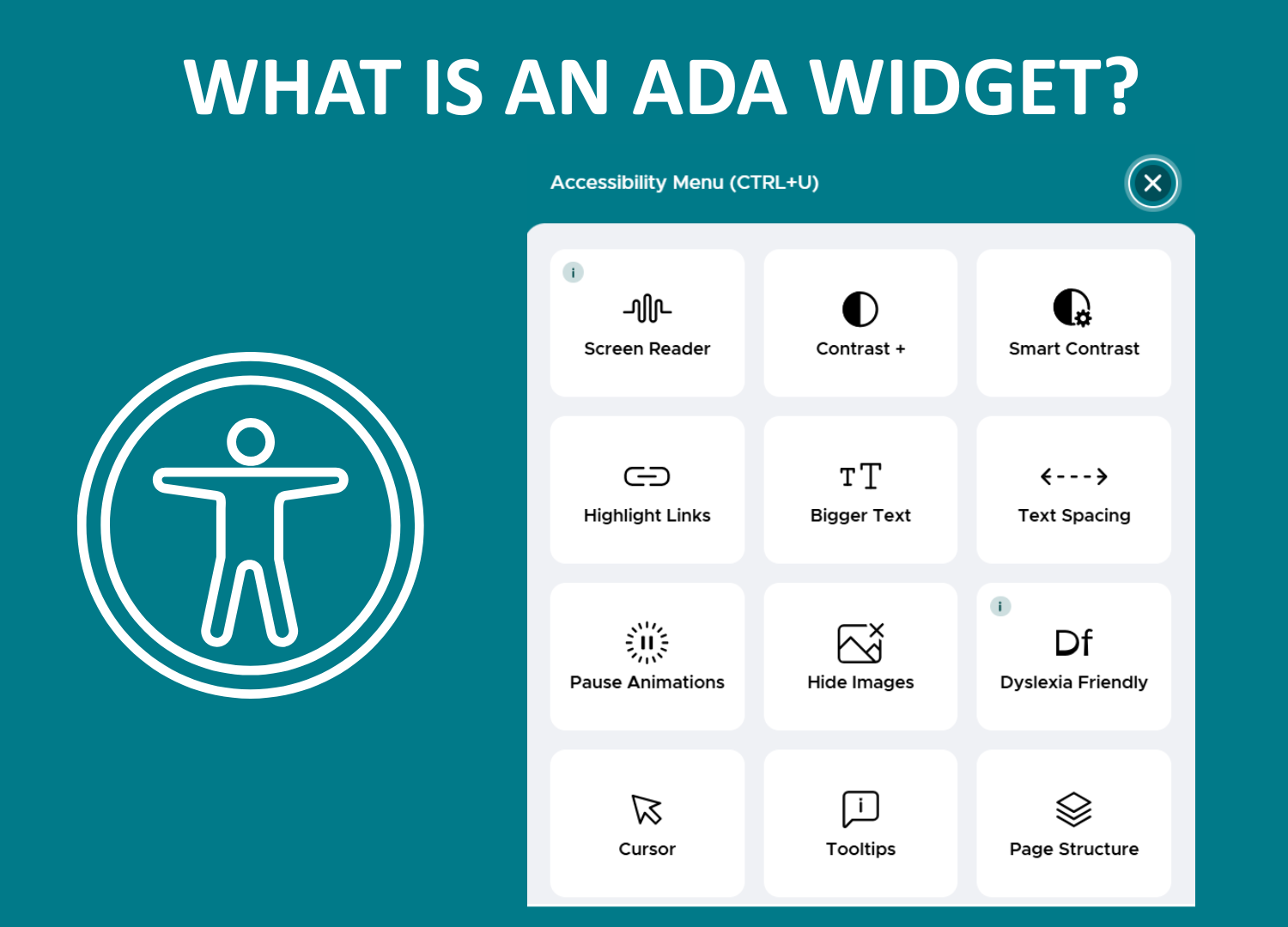
Ever notice a small floating icon in the corner of a website — usually resembling a person? Click on it, and a menu of display options pops up.
Say hello to the ADA widget.
Widgets are increasingly common, and for good reason. But there’s also a significant gap between what they do and what many businesses think they do.
Here’s a straightforward look at what ADA widgets are, how they work, and what they can and can’t accomplish.
What is an ADA Widget?
ADA refers to the Americans with Disabilities Act. An ADA widget — also called an accessibility overlay or accessibility toolbar — is a piece of software added to a website with a single line of code. When a visitor clicks the floating icon, a menu opens with tools that let them adjust how the site looks and behaves.
Common options include:
- Increasing or decreasing text size and spacing
- Adjusting color contrast or switching to high-contrast and dark modes
- Highlighting links, enlarging the cursor, or adding a reading guide
- Enabling a dyslexia-friendly font or pausing animations
- Some include screen-reader assistance, text-to-speech features, and keyboard navigation helpers
These tools give users genuine control over their experience — and for many visitors, that’s meaningfully helpful.
How It Works
A widget runs as a small script on your site. Once the page finishes loading, three things happen:
- It layers its controls on top of your existing site. The floating icon appears, and clicking it opens the menu of display options.
- It scans the page. The tool reads through the code looking for elements it recognizes as accessibility gaps — images with no alt text, buttons with no label, form fields with nothing identifying them.
- It attempts automatic patches. That can mean generating alt text for an image, or adding ARIA labels — small pieces of code that describe what a button or menu does so a screen reader can announce it correctly.
All of this happens in the visitor’s browser, in the moment, every time the page loads.
What a Widget Changes — and What It Doesn’t
The appeal is straightforward. Widgets are fast to install and require no developer or redesign. They give some users genuinely helpful display controls, and they signal that a business is thinking about accessibility.
The distinction worth understanding is where a widget operates.
For visitors using the display controls, that distinction doesn’t matter much. Someone who needs larger text, higher contrast, or reduced motion opens the menu, makes the adjustment, and gets a better experience. That’s a genuine benefit, and it’s the widget doing exactly what it was built to do.
Automated patches are less predictable. A tool generating alt text can identify what’s in an image, but not why it’s on the page. A photo of a dog in a play yard might need to describe the facility or introduce a specific pet. A label applied programmatically may or may not match the intent or purpose of an element. These are educated guesses, and the quality varies.
A widget changes what visitors see. It doesn’t change the accessibility of the code underneath — which is where accessibility is ultimately determined. Even the widget vendors themselves have moved away from compliance guarantees, now describing their tools as a way to work toward conformance rather than to deliver it.
The Bottom Line
An ADA widget is a genuinely useful tool — it gives visitors more control over how they experience your website, and it’s quick to set up. Like most accessibility tools, it works best as one part of a broader approach rather than a standalone fix.
The rest of that approach lives in the site itself — things like proper heading structure, keyboard navigation that works without a mouse, form fields labeled in the code, and sufficient color contrast built into the design rather than toggled by the visitor. That’s work, typically handled by a developer or specialist rather than added through a plugin.
Curious Where Your Website Stands?
A website has a lot of jobs: getting found, loading fast, earning trust, and turning visitors into inquiries. IMPACT helps businesses understand where theirs is succeeding and where they’re losing people. Let’s talk.
***
FAQs
What does ADA stand for in the context of web accessibility?
ADA refers to the Americans with Disabilities Act. In the web context, it’s used broadly to describe the idea that websites should be accessible to people with disabilities.
Is an ADA widget the same as ADA compliance?
Not exactly. A widget adds user-facing tools that can improve the experience for some visitors, but it works on top of your site rather than modifying the underlying code. It’s one piece of a broader accessibility picture.
What kinds of accessibility issues can a widget address?
Widgets are most useful for visible, user-controlled adjustments — text size, contrast, cursor size, reading guides, and similar display preferences. They give visitors more control over how they experience your site.
Do I need a developer to install an ADA widget?
No. Most widgets are added with a single line of code and don’t require a redesign or ongoing developer support, which is part of why they’re a popular first step for many businesses.
Should an ADA widget be the only accessibility tool I use?
It can be a helpful piece of the puzzle, but it’s worth understanding what it does and doesn’t cover so you can decide whether additional steps make sense for your website and your goals.